

Room booking should be simple for staff, visitors and facilities teams. At Advertise Me, we connected Microsoft 365 calendar events to digital screens so people could see room availability, identify meeting spaces and navigate the building from a single, clear interface. The result was more than a calendar on a screen. It became a practical communication system that connected room booking, wayfinding and an interactive directory in one experience.
Looking to display your room calendars?
Contact us on 1300 880 005 or request a quote and we will help you with your next digital solution.
The problem was not a lack of information
Most organisations already have the information needed to manage rooms. Calendar events exist in Microsoft 365. Room names are stored in a booking system. Staff directories are available through internal platforms. Building maps may exist in facilities software or documentation.
The challenge is that this information is often separated across different services and devices.
A person arriving at a building may need to answer several questions:
- Where is my meeting?
- Is the room currently available?
- Which floor should I visit?
- Who works in this area?
- What is the fastest route to the room?
- Can I find another suitable room if my booking changes?
When the answers are hidden inside separate applications, the user experience becomes slower than it needs to be. A visitor may need to ask reception for directions. A staff member may walk through several corridors looking for an available meeting room. A facilities team may need to update different systems whenever a room name, department or location changes.
Digital screens can improve this experience, but only when the screens display current information. A static directory or manually updated room list quickly becomes unreliable. The value comes from connecting the display to the organisation’s existing data.
 What changed with the Microsoft 365 integration
 What changed with the Microsoft 365 integration
The project connected Microsoft 365 room calendar data to digital displays placed in relevant areas of the building. The screens could show room availability, scheduled events and useful location information in a format that was easy to understand at a glance.
Instead of treating the calendar and directory as separate communication tasks, we designed the experience around the user journey:
- A visitor enters the building.
- The visitor searches for a person, department or meeting room.
- The directory identifies the relevant location.
- The user follows the displayed directions.
- The room screen confirms the booking and current status.
- The display updates as calendar information changes.
This journey is important because a good digital display should not simply show data. It should help people complete a task.
The role of Microsoft Graph
Microsoft Graph provides a practical way to access information across Microsoft 365. It acts as a connection layer between approved applications and Microsoft services, allowing a solution to work with relevant data such as users, calendars, groups and locations.
For a room booking display, Microsoft Graph can provide access to calendar information associated with meeting rooms. This makes it possible to show current and upcoming events without asking staff to maintain a second calendar for the digital signage system.
That connection is valuable for several reasons.
One source of current information
When a meeting is created, changed or cancelled in Microsoft 365, the display can reflect that change through the integration. The organisation does not need to depend on a staff member copying events into a separate platform.
This reduces the chance of conflicting information. The calendar used by staff remains the calendar shown on the room display.
Less manual administration
Manual updates create effort and risk. Every additional system that needs to be updated adds another step for facilities and administration teams.
With a Microsoft Graph connection, the display can retrieve information directly from the approved Microsoft environment. Teams can spend less time entering the same information in several places.
Better support for Microsoft environments
Many education, health, government and corporate organisations already use Microsoft 365 as part of their daily operations. Integrating with the platform means the digital display solution can fit into an existing technology environment rather than asking the organisation to replace its core tools.
More flexible experiences
Microsoft Graph is not limited to one type of display. Depending on the project requirements, connected information can support room panels, wall mounted screens, reception directories, wayfinding interfaces and other digital experiences.
The important point is that the integration is designed around the organisation’s requirements. We do not treat every building as if it has the same audience, room structure or information needs.
Microsoft Graph is valuable because it connects the display to the organisation’s working data, rather than creating another isolated information island.
How the room booking display works
A room booking display is usually positioned near the entrance to a meeting room or shared space. It gives users immediate information about the room without requiring them to open a mobile application or walk to a reception desk.
The display can show the room name, current status and upcoming events. A simple colour system can make the information easier to scan, while clear typography helps users understand the screen from a short distance.
A typical screen may include:
- The room name and room number
- Current availability
- The current meeting title where appropriate
- The next scheduled booking
- The start and finish time
- A visual indicator for available or occupied status
- Instructions for booking or contacting support
- Relevant building or department information
The layout needs to be considered carefully. A screen that displays every possible detail may become difficult to read. The goal is to show the information that helps a person make a quick decision.
For example, someone standing outside a room usually needs to know whether it is available now and when it is booked next. They may not need a long meeting description or a complete daily schedule.
Room status in the right place
Location is a major part of the experience. Calendar information is most useful when it appears close to the room itself.
A user who sees a room listed as available in a general directory may still need to walk across a building to confirm it. A room panel placed outside the space provides immediate confirmation.
This can help reduce interruptions to reception staff and facilities teams. It also gives users more confidence that they are looking at the correct room.
Information that changes with the working day
The display needs to respond to the rhythm of the building. A room may be busy in the morning, available at lunchtime and booked continuously in the afternoon.
Connecting the display to Microsoft 365 allows the experience to reflect these changes. The screen is not a printed timetable. It is a live communication point that supports the way people use the building.
 How the interactive directory board supports visitors
 How the interactive directory board supports visitors
The directory board extends the room booking experience beyond meeting rooms. It can help people find staff, departments, services and locations throughout a building or campus.
An interactive directory may allow a user to search for:
- A staff member
- A department
- A clinic or service
- A meeting room
- A reception point
- A public facility
- A building or floor
After selecting a result, the interface can provide information such as the location, floor, room number and directions. In some environments, it can also display a map or guide the user to a nearby lift, staircase or reception area.
This is especially useful in large organisations where people may work across several buildings or floors. Even regular staff can find it difficult to navigate a complex site when visiting an unfamiliar department.
The directory also has a role in creating a more welcoming arrival experience. Visitors are given a way to find information independently, while reception teams can focus on tasks that require personal assistance.
One project, several connected systems
Digital signage projects often look simple from the user’s perspective. A visitor sees a screen, selects an option and receives an answer. Behind that experience, several systems may need to communicate reliably.
At Advertise Me, we have completed integrations involving multiple systems. These projects require more than placing a screen on a wall. They require an understanding of data, permissions, hardware, content, user behaviour and the physical environment.
Depending on the project, a digital display solution may connect with:
- Microsoft 365 calendars
- Microsoft Graph services
- Room and resource information
- Staff or department directories
- Wayfinding data
- Digital signage management platforms
- Touchscreen hardware
- Building maps
- Web services and application programming interfaces
- Content approval and administration workflows
Each system has its own structure and requirements. The work involves deciding what information should be shared, how it should be displayed and how the solution should behave when data is missing, delayed or changed.
Integration is more than moving data
A successful integration does not simply copy a calendar feed onto a screen. It transforms data into a useful experience.
For example, a calendar may contain information that is appropriate for internal staff but not for a public display. A meeting title may include confidential details. A staff directory may contain records that should not be shown to every visitor.
We consider these questions during the planning stage:
- Which data should be displayed?
- Who is allowed to see it?
- What should happen when a booking is private?
- How should cancelled events appear?
- What happens if the network connection is interrupted?
- How will room names and locations be maintained?
- Which team owns the content after launch?
These decisions help create a reliable solution that respects both the user experience and the organisation’s information requirements.
 Why we are different
 Why we are different
Advertise Me is different because we approach digital displays as part of a broader communication and technology system. The screen is important, but it is only one part of the project.
Our work combines strategy, design, integration and practical delivery. We look at how information is created, how people use it and where the display fits within the physical environment.
We start with the real user journey
It is tempting to begin with a screen size or a software feature list. We prefer to begin with the task that users need to complete.
Are they trying to find a room? Confirm a meeting? Locate a staff member? Understand where to go next? The answer influences the screen layout, interaction model and information displayed.
We work with existing systems
Organisations have already invested in platforms such as Microsoft 365. We look for sensible ways to extend the value of those systems rather than creating unnecessary duplication.
This can make the solution easier for internal teams to adopt. Staff continue using familiar tools, while visitors and employees receive information through a more accessible interface.
We understand the physical environment
A digital screen is affected by its surroundings. Viewing distance, lighting, wall position, accessibility, foot traffic and mounting height all matter.
A design that looks clear on a laptop may not work on a screen viewed from several metres away. A touch interface may need larger controls in a busy public area. A directory near a window may require careful consideration of reflections.
We consider these practical details because the best software experience can fail if it is difficult to see, reach or understand.
We can connect multiple parts of the experience
Our experience with multiple system integrations allows us to consider the complete environment. This may include digital signage, room booking, directories, wayfinding, content management and data connections.
That broader view helps avoid disconnected solutions that work individually but create confusion when used together.
We focus on maintainability
A digital display should continue to be useful after installation. We consider who will manage the system, how changes will be approved and how new rooms, departments or locations will be added.
Simple administration is not an optional extra. It is part of the success of the project.
 Use cases for Microsoft 365 calendar displays
 Use cases for Microsoft 365 calendar displays
The same approach can support many different types of organisations. The details change from project to project, but the need is consistent: people need clear information at the moment they are making a decision.
Universities and education campuses
Universities have complex buildings, changing timetables and a mixture of students, academics, visitors and support teams.
Room displays can help identify teaching rooms, meeting spaces, offices and shared facilities. Interactive directories can support campus navigation and reduce the pressure on reception points during busy periods.
A faculty or department can also use digital screens to promote events, provide announcements and guide visitors to the correct room.
Health and medical facilities
Health environments require clear navigation and careful presentation of information. Visitors may already feel uncertain when they arrive, so the ability to search for a clinic, department or staff member can make the experience less stressful.
Room booking displays can support meeting rooms, consultation spaces, staff areas and shared facilities. The content and privacy settings need to be planned carefully, especially where room names or event details could reveal sensitive information.
Corporate offices
Modern offices often contain shared meeting rooms, collaboration spaces and flexible work areas. A room display can help staff identify available spaces without checking several applications.
Directories can support visitors, contractors and employees who work across multiple floors. Screens can also show internal announcements, workplace information and building services.
Government buildings
Government facilities may have multiple departments, public services and security requirements. A connected directory can make it easier for visitors to find the right service while reducing confusion in reception areas.
Room booking displays can support internal teams and shared facilities, provided the information is managed according to the organisation’s policies.
Training and conference venues
Training centres and event venues often need to change room information throughout the day. Connected calendars can reduce the need for printed signs and manual updates.
Displays can show the event name, room location and next session. A central directory can help attendees find registration desks, breakout rooms and facilities.
Commercial buildings
Shared commercial buildings can use directories to identify tenants and services. Room booking information can support shared meeting facilities, business centres and collaborative spaces.
With the right content structure, the same screen network may support tenant information, building announcements and visitor guidance.

The evidence behind a connected display experience
The value of this type of project can be understood through several practical measures. Not every organisation will track the same numbers, but the patterns are useful when evaluating the outcome.
| Area | Disconnected approach | Connected approach | Practical implication |
|---|---|---|---|
| Room information | Manually updated signs or separate systems | Calendar information connected to the display | Less duplication and fewer stale notices |
| Visitor navigation | Reception assistance or printed maps | Interactive search and location guidance | More independent wayfinding |
| Administration | Multiple updates across different tools | Existing Microsoft 365 information reused | Lower ongoing administration effort |
| Room visibility | Users check an application or ask staff | Availability shown at the room | Faster decisions in the building |
| Content consistency | Different systems may show different details | Shared data and defined content rules | Greater confidence in the information |
These benefits are not created by the display hardware alone. They come from connecting the correct information to a useful interface and placing it where people need it.
Planning the integration properly
Good planning prevents many problems later. Before building the display experience, it is important to understand the organisation’s Microsoft 365 setup, room structure and operational requirements.
Define the information model
Start by listing the information that needs to appear on each screen. A room display may need only the room name, availability and upcoming events. An interactive directory may require staff records, departments, floor details and maps.
Defining this information early helps separate essential content from unnecessary detail.
Confirm room and location records
Room names need to be consistent. If a room appears as “Board Room 1” in one system and “Meeting Room A” in another, users may become confused.
It is useful to create a clear relationship between the Microsoft 365 room resource, the display location and the directory record. This provides a foundation for reliable navigation.
Review permissions and privacy
Microsoft Graph access must be configured carefully. The integration should request only the permissions required for the project and should follow the organisation’s security processes.
Public displays should not expose private information. Meeting titles, attendee names and room details may need to be filtered depending on the environment.
Consider network and device behaviour
Digital displays need to remain useful when a connection is temporarily unavailable. The system should have sensible behaviour for delayed data, device restarts and network interruptions.
Depending on the project, the display may cache appropriate information or show a clear service message. The exact approach depends on the organisation’s requirements and security policies.
Plan for accessibility
Interactive directories should be designed for a broad range of users. Text needs to be readable. Touch targets should be large enough to select easily. Colour should not be the only way to communicate room status.
Wayfinding information should be clear for people with different mobility, vision and language needs. Physical placement also matters. The screen should be reachable and positioned where users can pause without blocking a busy walkway.
From data to a useful screen
There is a difference between showing data and communicating information. Calendar data may be accurate, but a poor layout can still leave users uncertain.
We consider the following design principles when turning Microsoft 365 information into a display experience:
- Show the most important information first.
- Use plain language wherever possible.
- Keep the layout consistent across room displays.
- Use clear status indicators with supporting text.
- Make the next action obvious.
- Allow enough time for users to read and interact.
- Use strong contrast and readable text sizes.
- Remove information that does not help the immediate task.
For a room panel, the most important question is often whether the room is available. For an interactive directory, the first priority may be search. For a reception screen, the focus may be visitor instructions and building navigation.
Each display should have a clear role. Trying to make every screen do everything can create an interface that is busy and difficult to use.
The Advertise Me case study
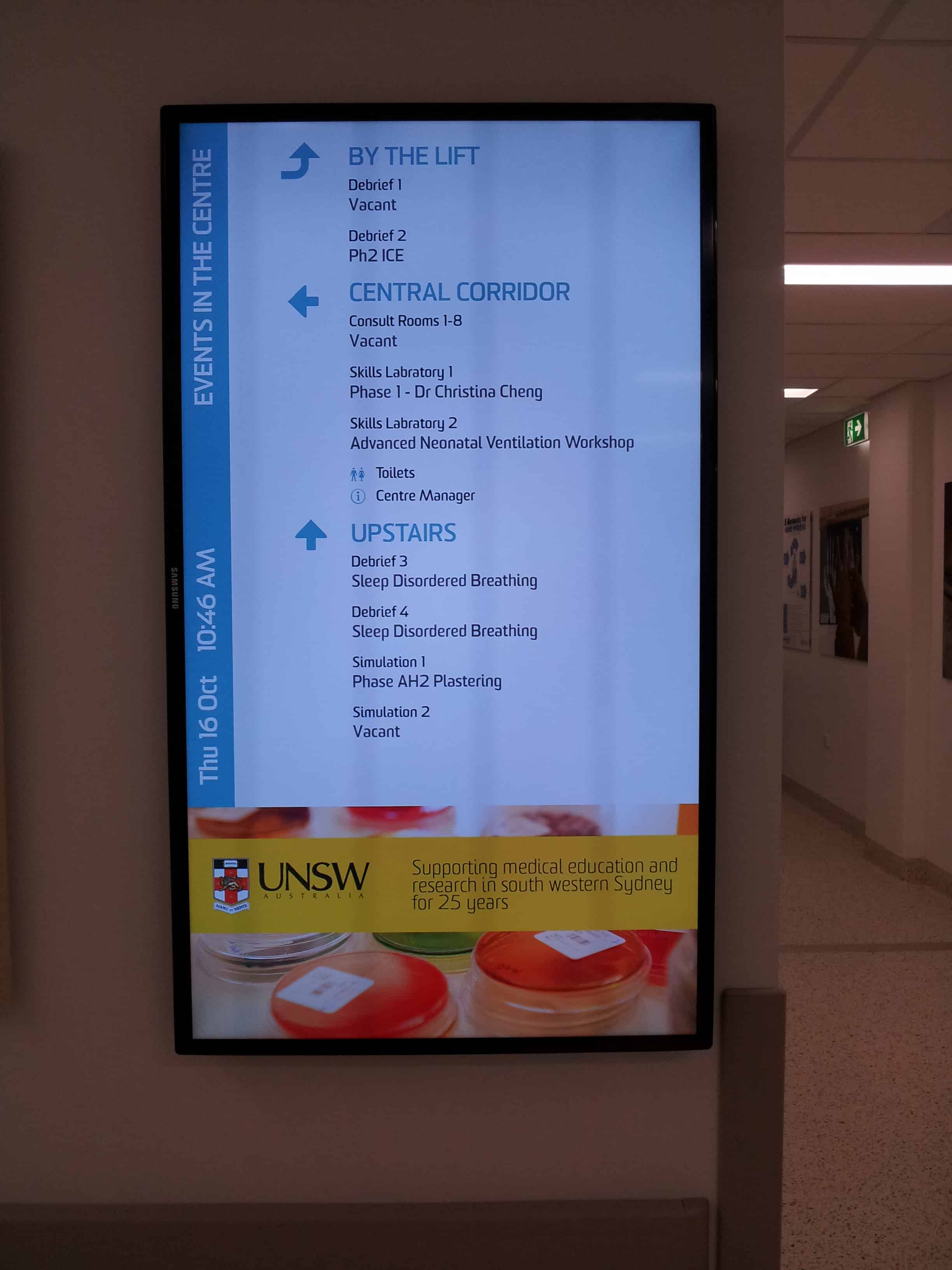
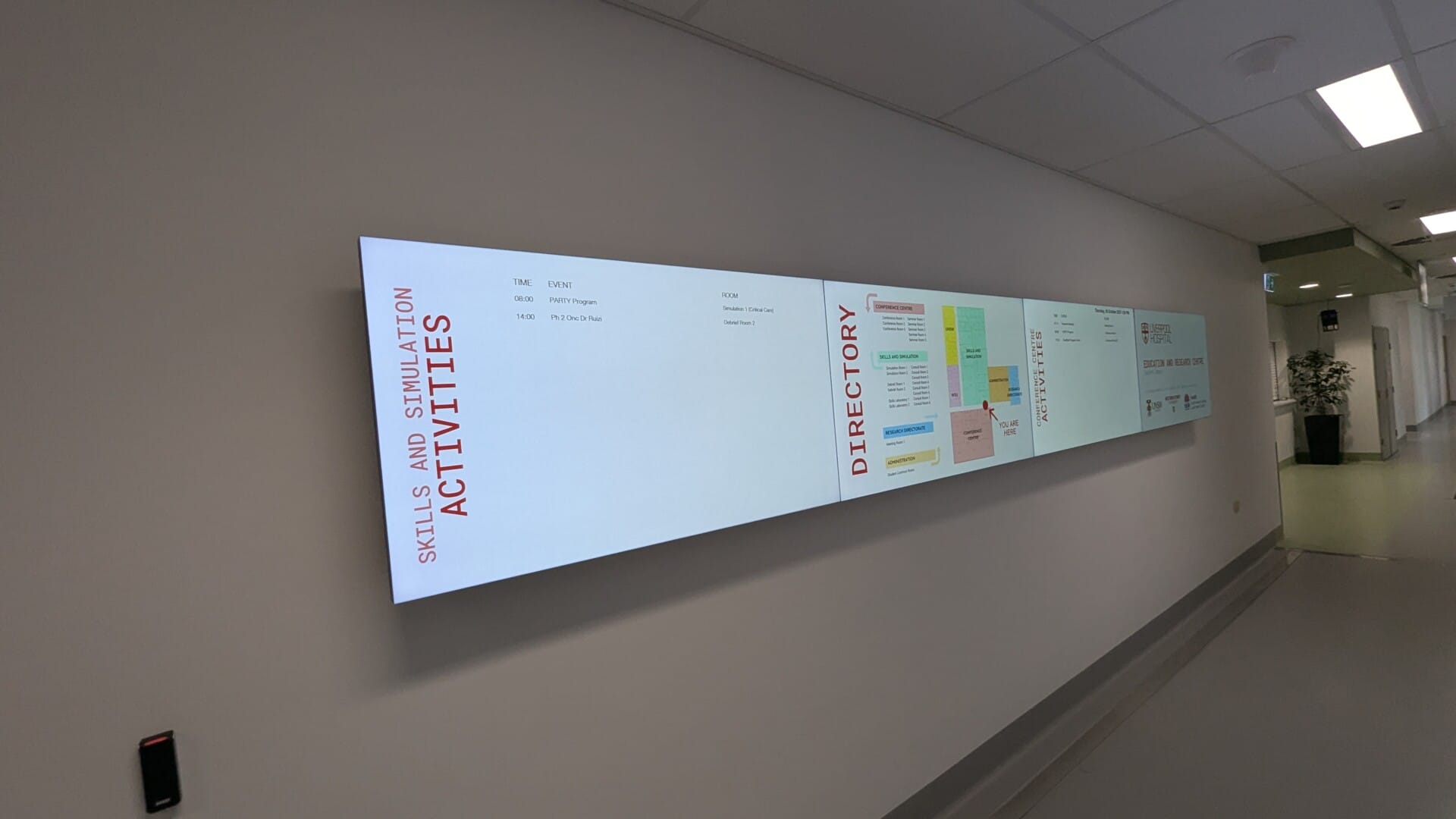
One example of this approach is our project for UNSW Medicine and Health in South Western Sydney. The project focused on Microsoft 365 room booking and digital displays as part of an interactive solution for the environment.
You can read the full case study on the Advertise Me website:
Interactive solutions for UNSW Medicine and Health in South Western Sydney
The case study demonstrates how a connected digital display environment can support room booking, navigation and communication in a large health and education setting.
This type of environment has a number of practical challenges. There may be multiple teams, shared rooms, visitors unfamiliar with the site and a need for information to remain current throughout the day.
Connecting Microsoft 365 room information to the display experience helps address the gap between the information stored in the organisation’s systems and the information people need when they arrive at a physical location.
The project also highlights an important principle: digital signage is most useful when it is connected to the operational activity of the organisation. It becomes part of the building experience rather than simply a screen showing promotional content.
What implementation looks like in practice
Every project has its own requirements, but a typical implementation can be organised into several stages.
Stage one: discovery
We begin by understanding the building, the users and the existing technology. This includes conversations with facilities teams, information technology teams, communications staff and other people responsible for the user experience.
Questions may include:
- How are rooms currently booked?
- Which Microsoft 365 services are in use?
- Where do visitors need the most help?
- Which rooms require displays?
- What information should be public?
- Who will maintain the directory?
- What devices and networks are already available?
Stage two: data and integration design
Next, we define how systems should communicate. This includes identifying the relevant Microsoft Graph resources, determining the required permissions and planning how information will be transformed for the display.
At this stage, it is also useful to agree on rules for private bookings, cancelled meetings, unavailable rooms and missing location data.
Stage three: interface design
The interface is designed around the physical screen and its audience. A room panel may need a simple status view. A directory board may need search, filters, floor maps and clear navigation controls.
Design decisions are tested against viewing distance, lighting, accessibility and the time users have available to interact with the screen.
Stage four: development and connection
The approved design is then connected to the relevant systems. This is where data handling, display behaviour and user interaction are brought together.
Testing should cover normal activity as well as unusual conditions. Examples include a room with no bookings, a booking that is cancelled, a private meeting, a missing directory record or a temporary service interruption.
Stage five: installation and testing on site
A screen may behave differently in the real building than it does in a design review. Reflections, viewing angles, ambient light, network coverage and foot traffic all need to be checked.
On site testing confirms that the display is readable, responsive and positioned correctly for the intended users.
Stage six: handover and ongoing support
After launch, internal teams need to understand how the system works and who to contact when changes are required. Documentation and support processes help keep the solution reliable over time.
Common challenges and how to manage them
Room data is inconsistent
If room names, floor details or locations are different across systems, the display may produce confusing results. A data review before implementation can identify these issues.
Creating a consistent naming structure is often one of the simplest ways to improve the final experience.
Too much information is shown
It is easy to add more content because the data is available. However, users usually want an answer quickly.
We recommend prioritising information according to the user’s task. A screen outside a room should not require users to read a complete calendar before they can see whether the room is available.
Privacy requirements are overlooked
A meeting title that is useful to a staff member may not be suitable for a public display. Privacy rules should be discussed early, not after the interface has been built.
Information can be limited, filtered or replaced with a more general status message when required.
The screen is treated as a standalone device
Hardware needs monitoring, updates and support. The organisation should know what happens if the device loses power, the network becomes unavailable or the display needs to be replaced.
A support plan helps protect the value of the system after installation.
The directory is not maintained
An interactive directory is only useful when its staff and location data remains accurate. Ownership needs to be assigned to a team or process.
Where possible, the directory should use an approved source of information so changes do not depend entirely on manual editing.
Benefits for different teams
| Team | Benefit |
|---|---|
| Visitors | Clearer directions and easier access to room and department information |
| Reception | Fewer repetitive navigation questions during busy periods |
| Facilities | Better visibility of room use and fewer printed notices |
| Information technology | A defined connection between Microsoft 365 data and display devices |
| Communications | A controlled channel for relevant announcements and information |
| Staff | Faster access to room availability and building information |
| Leadership | A more consistent and professional experience across the site |
The benefits become stronger when the system is designed as a shared service rather than a project owned by only one department. Facilities, information technology, communications and front of house teams may all have a role in keeping the experience effective.
How to measure success
A data led project should have practical measures. The best measures depend on the organisation, but several signals can help show whether the solution is working.
- Fewer requests for basic room directions
- Fewer conflicting room notices
- Reduced time spent manually updating displays
- Improved visibility of room availability
- Higher confidence among reception and facilities teams
- Fewer visitors arriving at the wrong location
- More consistent information across the building
- Positive feedback from staff and visitors
Usage data may also be available for interactive directory boards. This can show which searches are most common, which locations are difficult to find and where additional signs or content may be required.
Qualitative feedback is equally important. A visitor who says, “I found the room without needing to ask,” is describing a meaningful improvement in the experience.
The strongest result is often not a dramatic new feature. It is the quiet removal of friction from everyday tasks.
A practical checklist for organisations
Before starting a Microsoft 365 calendar display project, consider the following checklist.
- Identify the rooms and locations that need displays.
- Confirm that room resources are configured correctly in Microsoft 365.
- Review calendar privacy requirements.
- Define which event information can be shown publicly.
- Check the accuracy of room names and floor details.
- Decide whether an interactive directory is required.
- Identify the source for staff and department information.
- Review network access and device requirements.
- Consider accessibility and physical screen placement.
- Define who will manage content and user records.
- Plan for service interruptions and device replacement.
- Agree on measures for evaluating the project.
- Test the experience with real staff and visitors.
This checklist helps turn a general idea into a manageable implementation plan. It also gives different teams a common starting point for discussion.

Making building information easier to use
Microsoft 365 contains valuable operational information, but people cannot always access that information at the moment they need it. Connecting calendars to digital displays brings room availability into the physical environment. Adding an interactive directory helps people find the right person, department or room with less effort.
Our work at Advertise Me focuses on making these connections practical. We combine Microsoft Graph integration, digital signage, interface design and knowledge of real buildings to create experiences that are clear for users and manageable for internal teams.
The UNSW Medicine and Health project in South Western Sydney is an example of how Microsoft 365 room booking can support a wider interactive solution. To explore the project in more detail, visit the UNSW Medicine and Health case study.
Frequently Asked Questions
How can Microsoft 365 calendars be displayed on digital screens?
Microsoft 365 calendar data can be connected to digital displays using Microsoft Graph. This allows room screens, reception directories and wayfinding interfaces to show current room availability, scheduled meetings and location information.
What are the benefits of connecting room displays to Microsoft Graph?
The integration provides a single source of current information, reduces manual administration and helps prevent conflicting room details. When a meeting is created, changed or cancelled in Microsoft 365, the display can reflect the update without requiring staff to maintain a separate calendar.
Can the system support more than room booking displays?
Yes. The same connected digital environment can support interactive directories, wayfinding screens, reception displays and other communication points. Users can search for people, departments or meeting rooms and receive directions through the building.
How does this solution improve the visitor and staff experience?
It presents useful information at the point where people need it. Visitors and staff can find meeting rooms, check availability, locate departments and follow directions without searching through multiple systems or asking for assistance.
Is the solution suitable for organisations that already use Microsoft 365?
Yes. The approach is designed to work with existing Microsoft 365 environments, making it suitable for organisations such as universities, healthcare providers, government departments and corporate offices with complex buildings or busy meeting spaces.
Looking to display your room calendars?
Contact us on 1300 880 005 or request a quote and we will help you with your next digital solution.


